Generate Invoices with Claude

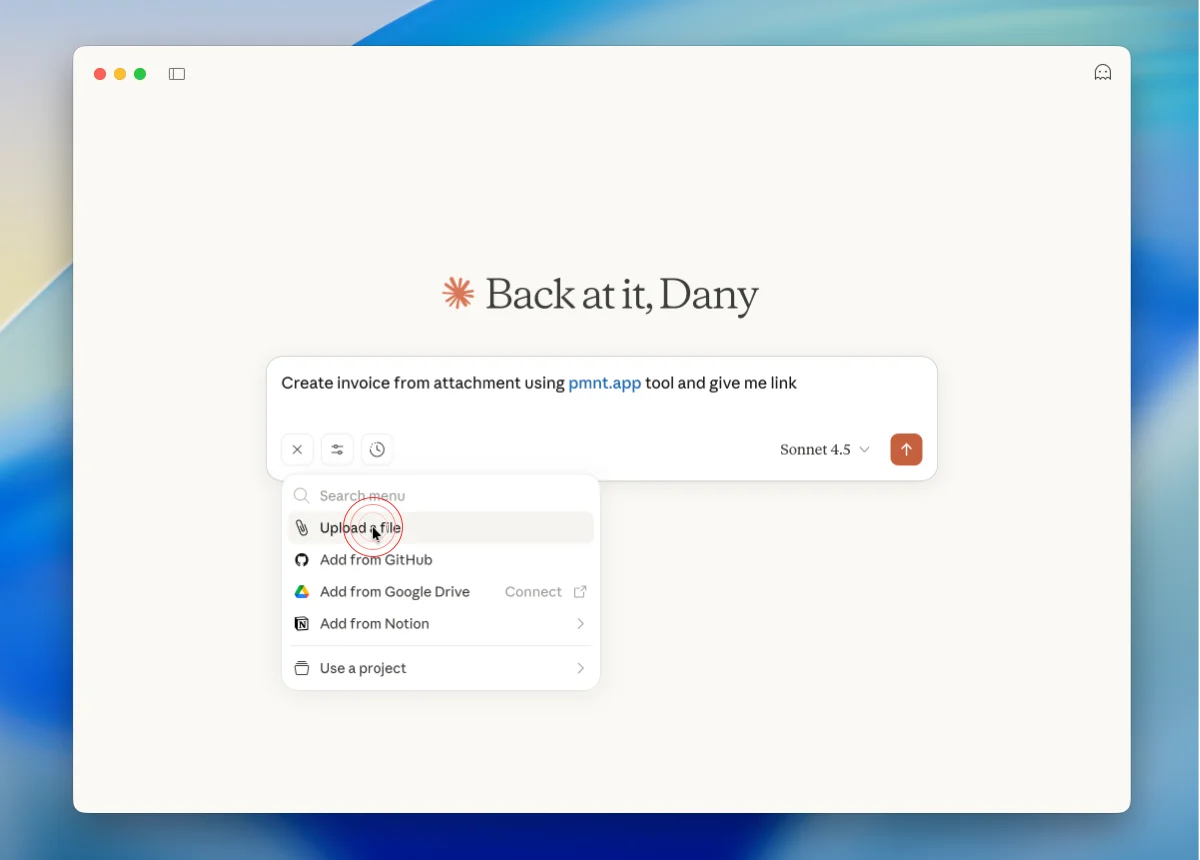
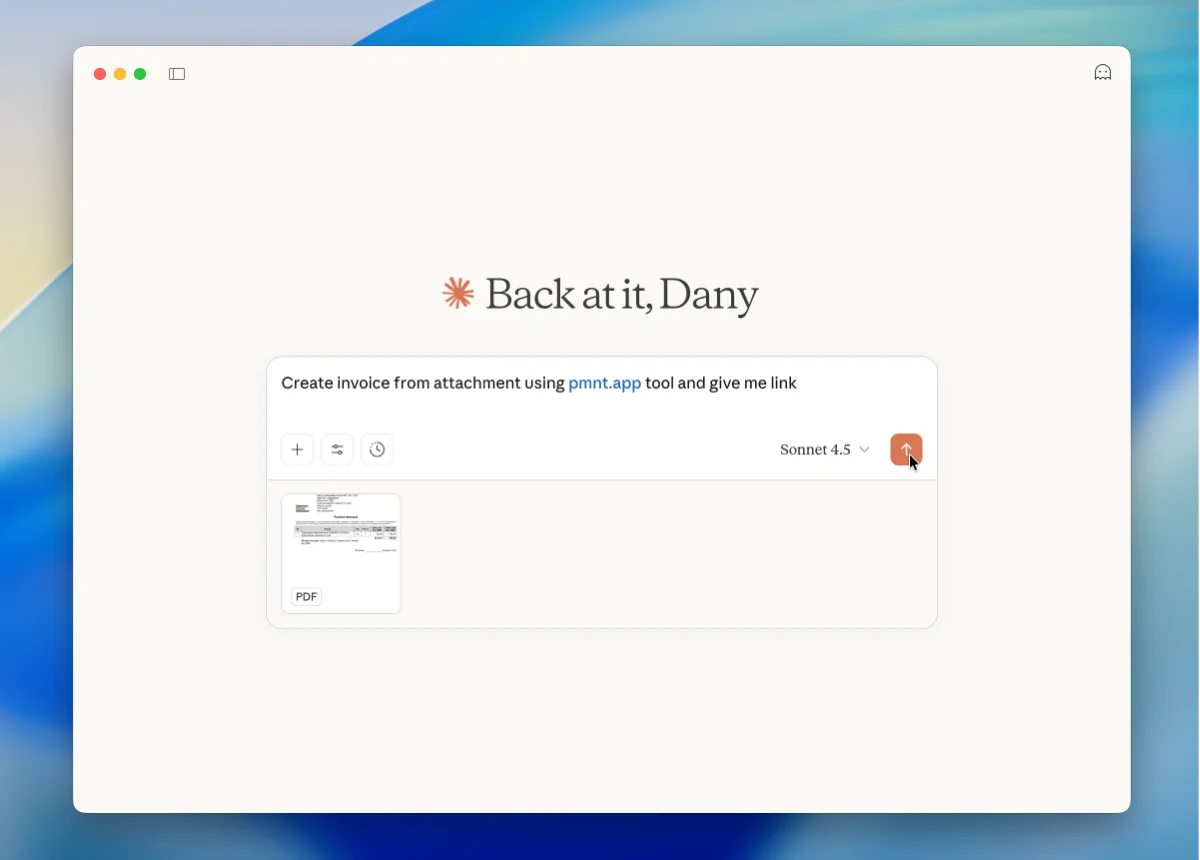
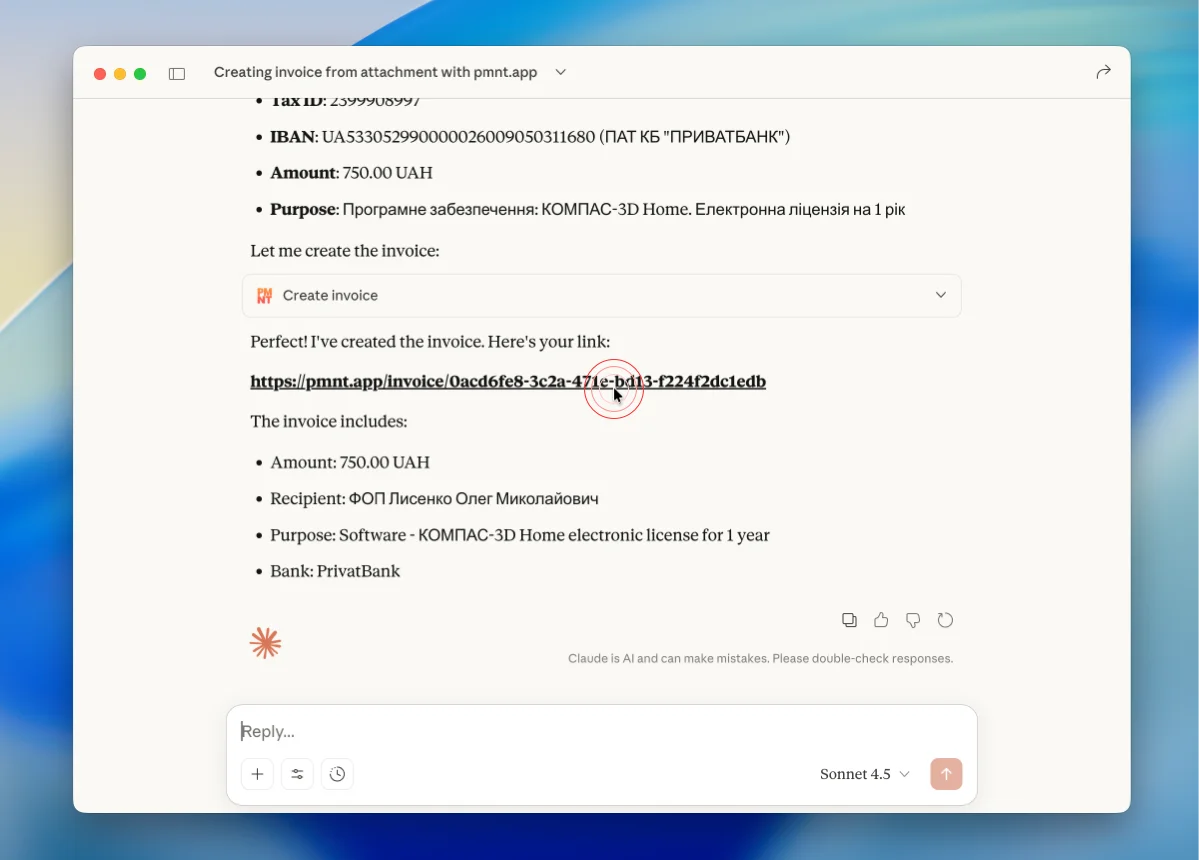
Add pmnt to claude.ai or Claude Desktop as a custom connector, or add it to Claude Code with one command. Then attach a PDF invoice or describe the payment in the chat. Claude returns a payment link with an NBU QR code.

MCP Server URL

https://mcp.pmnt.app

Enter the URL exactly as shown. Do not add a slash at the end.
IBAN payments with QR in Claude

Works in
claude.ai, Claude Desktop, the Claude mobile apps and Claude Code
Setup
A custom connector, or the pmnt plugin for Claude Code
Sign-in
Your pmnt account, in the browser. One permission: create invoices.
Tools
create_invoice creates an invoice in your pmnt account. list_payees shows your businesses and bank accounts. list_payment_categories shows the payment categories.
You need
An active pmnt trial or subscription and a business with a bank account.

Requirements

You need a pmnt account with an active trial or subscription. Add at least one business with a bank account at app.pmnt.app. The 15-day free trial starts when you first sign in at app.pmnt.app.

Custom Claude connectors work on all plans. The Free plan allows one custom connector. On Team and Enterprise plans, an Owner adds the connector first.

Set up pmnt in Claude

Add a custom connector in claude.ai or Claude Desktop

  1. Open claude.ai in your browser, or open Claude Desktop. Go to Customize › Connectors.

  2. Click Add custom connector. If you see + Add first, click it, then click Add custom connector.

  3. Enter pmnt as the name and https://mcp.pmnt.app as the URL. Enter the URL exactly, with no slash at the end. If the dialog shows Continue, click it.

  4. If the dialog asks for Authentication, choose Sign in now. For OAuth client, keep Use Claude's published identity (Recommended). Do not choose Register automatically, because the pmnt sign-in does not support it.

  5. If the dialog has Advanced settings instead, leave them empty. Click Add.

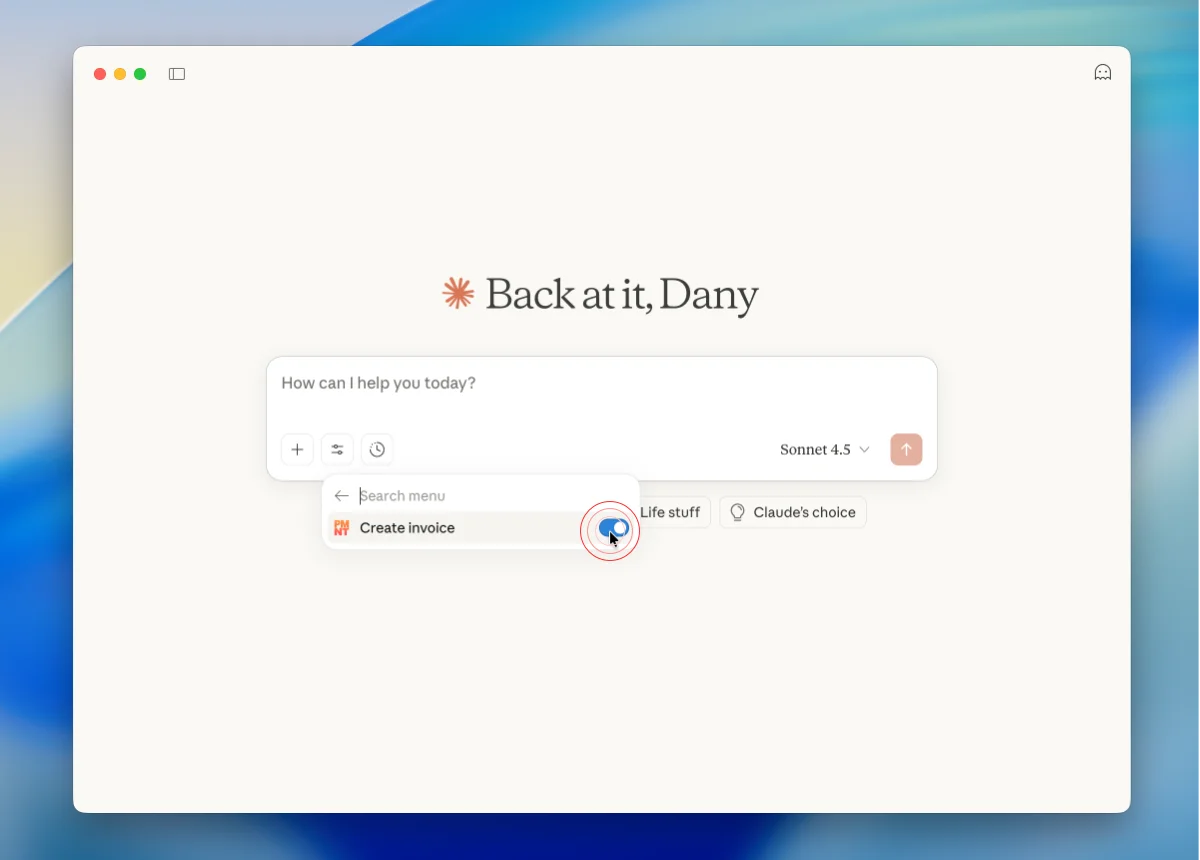
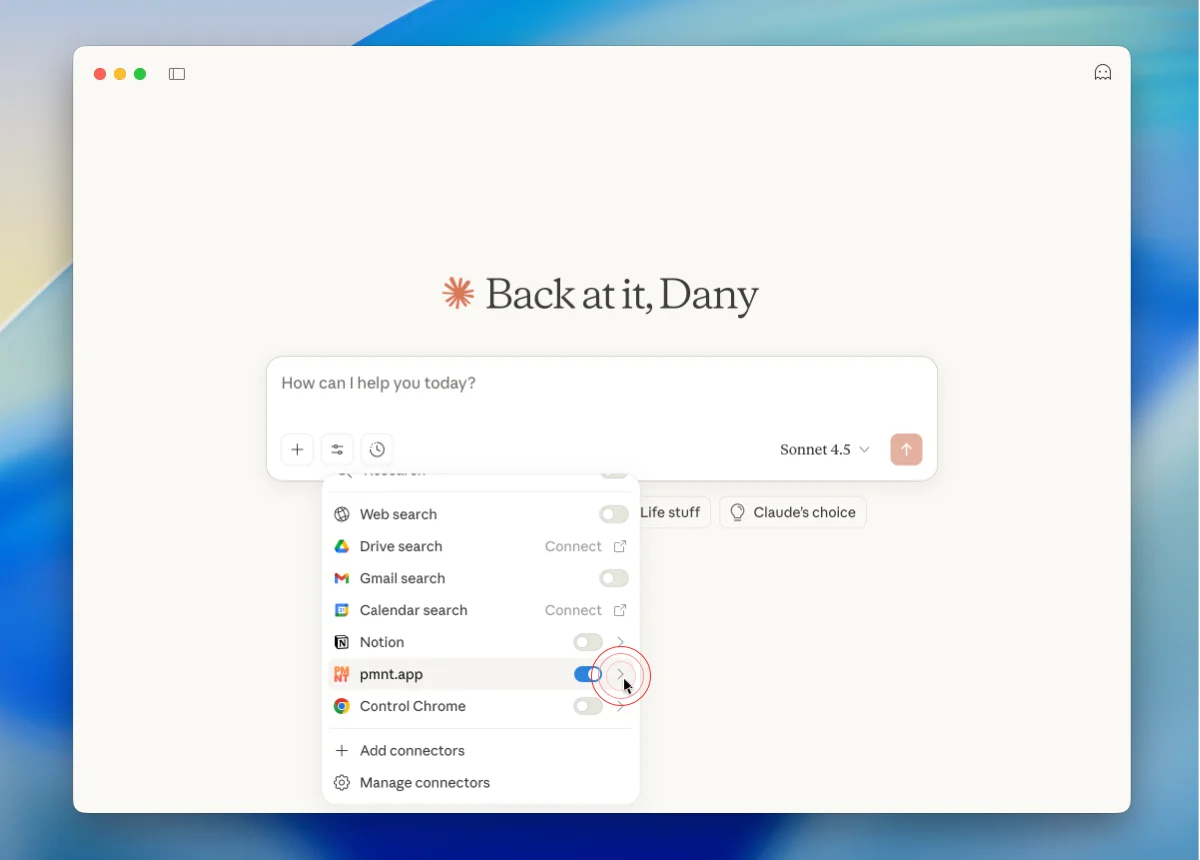
  6. In a chat, click +, open Connectors and turn on pmnt.

Team and Enterprise plans: an Owner adds the connector in Organization settings › Connectors. Members then find pmnt with the Custom label in Customize › Connectors and click Connect.

Add pmnt to Claude Code

If you added pmnt on claude.ai and you use Claude Code with the same account, Claude Code already shows pmnt. If not, choose one of these ways.

  1. Install the pmnt plugin. It adds pmnt to all your projects. This command needs Claude Code 2.1.292 or later:

    claude plugin install pmnt --marketplace pmnt-app/agent-plugins

    Or add the server to all your projects with this command:

    claude mcp add --scope user --transport http pmnt https://mcp.pmnt.app

    Without --scope user, Claude Code adds pmnt only to the current project.

  2. Run claude mcp list in a terminal. You see one of these lines, with the status Needs authentication until you sign in:

    Expected output

    plugin:pmnt:invoices: https://mcp.pmnt.app (HTTP) - ! Needs authentication
    pmnt: https://mcp.pmnt.app (HTTP) - ! Needs authentication
  3. Start Claude Code and type /mcp. Select pmnt, or plugin:pmnt:invoices for the plugin, and sign in.

Use one way only. If two entries have the same URL, Claude Code connects to the server once.

Check the connection

Send this request to Claude:

Show my pmnt businesses and bank accounts

Claude calls list_payees and shows the businesses and bank accounts from your pmnt account. If it asks you to sign in, see Troubleshooting.

In a terminal, run claude mcp list. If the pmnt line still shows Needs authentication, type /mcp in Claude Code and sign in again.

Create your first invoice

Ask for an invoice in plain words. For example:

Create a pmnt invoice for 500 UAH for consulting services, valid for 7 days

Create a pmnt invoice for a donation to the school fund. Let the payer enter the amount

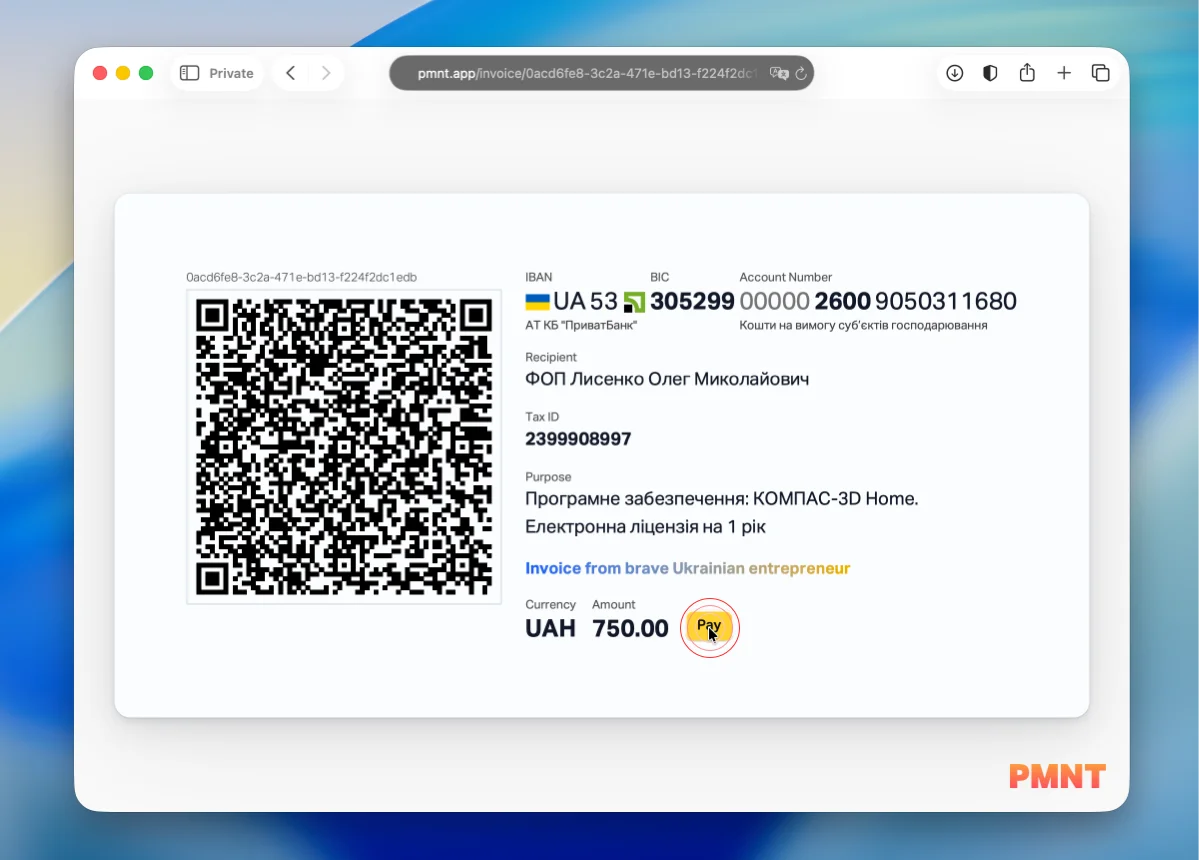
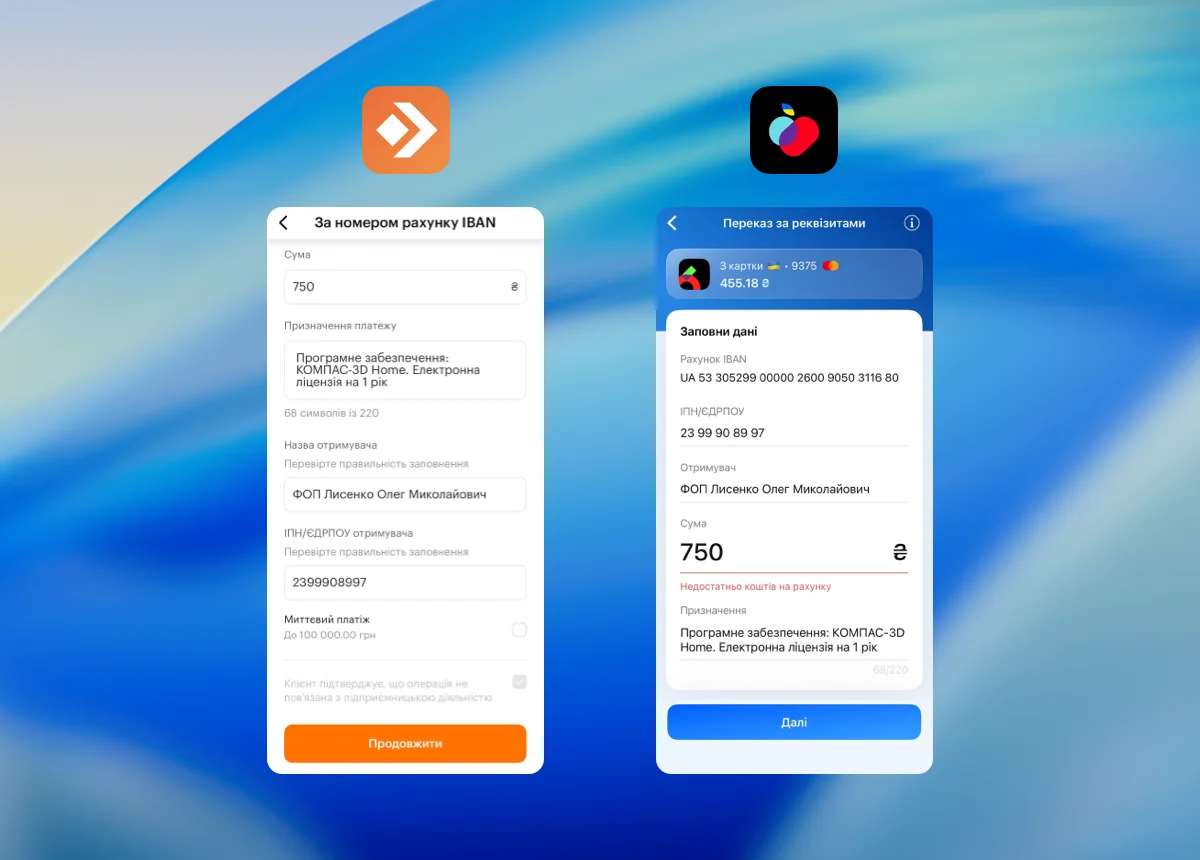
The answer has a payment link (app.pmnt.app/pay/...). The payment page shows the invoice and an NBU-standard QR code. Send the link to your customer. The customer scans the QR code with a banking app and pays by bank transfer.

If Claude asks you to allow the pmnt tool, check the amount and the purpose first.

Questions

Does pmnt work in Claude mobile?

Yes. Custom connectors connect from the Anthropic cloud, so they work in all Claude apps, including the mobile apps. Add the connector once on claude.ai or in Claude Desktop.

Plugin for claude.ai or Claude Desktop?

Yes, on paid plans. Open Customize › Plugins, select Add › Add marketplace and enter pmnt-app/agent-plugins. Then select pmnt in Discover and click Add. The plugin does not sign you in. Open the plugin, go to its Connectors tab and connect pmnt there. The custom connector on this page works on all plans.

Does the assistant get my password?

No. You sign in on the pmnt sign-in page, not in the chat. Claude gets one permission, Create invoices. With it, the assistant can create invoices and read your businesses, bank accounts and payment categories in pmnt. You can cancel this access at any time.

Do I type my IBAN in the chat?

No. pmnt takes the business and the IBAN from your pmnt account. The tool result contains the business name, the IBAN and the payment link, so Claude sees them.

How do I disconnect pmnt?

Delete the pmnt connector in Customize › Connectors. In Claude Code, run claude mcp remove pmnt, or claude plugin uninstall pmnt@pmnt-app for the plugin.

Troubleshooting

Sign-in fails after adding the connector

The connector must use Use Claude's published identity (Recommended). Register automatically does not work with pmnt. You cannot change this setting later. Delete the connector and add it again.

pmnt shows in one project only

The command without --scope user adds pmnt only to the current project. Add pmnt again with --scope user, or install the plugin.

You cannot add a custom connector

On Team and Enterprise plans, ask an Owner to add pmnt in Organization settings › Connectors. Then connect it in Customize › Connectors. The Free plan allows one custom connector only.

Messages from the pmnt tools

When a pmnt tool fails, Claude gets one of these messages. The assistant can show the message in other words.

Sign-in is required. Connect your pmnt account, then try again.
Open Customize › Connectors and connect pmnt again. In Claude Code, type /mcp and sign in again.
No pmnt account is linked to this sign-in. Create an account or sign in at https://app.pmnt.app, then try again.
Sign in at app.pmnt.app with the same account, or create an account there. Then try again.
Your pmnt subscription or trial is not active, so invoices cannot be created from this assistant. Plan information: https://pmnt.app/pricing
Renew the subscription at app.pmnt.app. The 15-day free trial starts when you first sign in at app.pmnt.app. See plans and prices
Your pmnt account has no business with a bank account. Add one at https://app.pmnt.app, then try again.
Add a business and its bank account at app.pmnt.app. Then try again.
Too many invoices in a short time. Wait a minute and try again.
Wait one minute, then try again.
The pmnt service is not available now. Try again later.
Try again in a few minutes. If you see the message again, write to support@pmnt.app.

Privacy and security

  • To create an invoice, pmnt uses your pmnt user ID, the business and bank account of the invoice, the purpose and the amount.
  • The MCP server does not collect your chat history, your location, payment card data or your password. It does not store your sign-in token.
  • The invoice goes to your pmnt account at app.pmnt.app. Your AI assistant provider (for example Anthropic, OpenAI, Perplexity, Google or GitHub) gets the tool result. Its own privacy policy covers your chat.
  • Invoices stay in your pmnt account until you delete them.

For privacy-related questions or data deletion requests, contact us at: support+legal@pmnt.app

Read the full MCP Privacy Policy Read the MCP Terms of Service